
Download LazySave – Secure Automatic Backup Screensaver
Introduction: Why a Screensaver‑Based Backup Tool Makes Sense
In today’s fast‑paced digital world, data loss is a nightmare that can strike anyone—from photographers guarding priceless images to professionals preserving confidential reports. LazySave tackles this fear with a clever twist: it turns the idle moments on your Windows PC into a powerful backup operation. When the screen saver activates, LazySave silently scans the folders you’ve designated and copies them to a destination of your choice—whether that’s a local USB drive, a network share, or another computer on the same LAN.
This “set‑and‑forget” approach means you don’t need to remember to run a backup utility manually; the software works while you relax, nap, or step away from the desk. The result is a seamless, low‑maintenance safety net that protects photographs, letters, spreadsheets, and any other irreplaceable file without interrupting your workflow. By integrating directly with the Windows screensaver engine, LazySave remains lightweight, consumes minimal resources, and respects your privacy—no hidden telemetry, no cloud subscriptions, just a straightforward, secure backup solution that runs locally.
Whether you’re a home user who backs up family photos to an external hard drive, or an office worker who needs to push daily snapshots to a central server, LazySave offers a flexible, cost‑effective answer to the ever‑present risk of data loss.
Core Features, Installation & Compatibility
Feature Set that Turns Idle Time into Protection
- Automatic backup triggered by screensaver activation.
- Supports multiple destination types: USB devices, network shares, and remote PCs.
- Selective folder inclusion with an easy drag‑and‑drop interface.
- Incremental backup algorithm reduces copy time and saves storage.
- Built‑in verification to ensure files are copied without corruption.
- Configurable schedule to ignore certain hours or days.
- Low‑impact operation—uses less than 5 % CPU while the screensaver runs.
- Detailed log file for audit trails and troubleshooting.
Step‑by‑Step Installation and First‑Run Setup
Getting LazySave up and running is designed to be as painless as possible. Begin by downloading the installer from the official website; the file is a small .exe package under 10 MB, ensuring a quick download even on slower connections. Run the installer and follow the wizard: accept the license agreement, choose the installation folder (the default location works for most users), and let the installer register the application as a Windows screensaver.
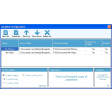
After the installation completes, launch LazySave from the Start menu to open the configuration window. The first screen prompts you to select the folders you wish to protect—simply click “Add Folder” and browse to your documents, pictures, or any custom directory. Next, specify the backup destination: plug in a USB drive and select it from the drop‑down list, or type the UNC path to a network share (e.g., \\Server\Backups).
Finally, adjust the screensaver activation time (default is 5 minutes of inactivity) and enable the “Run backup only when connected to power” option if you’re on a laptop. Click “Save Settings,” and LazySave will automatically replace the default Windows screensaver with its own, ready to start backing up the moment your PC goes idle.
Operating System Support and System Requirements
LazySave is built specifically for the Windows family, supporting Windows 10, Windows 11, and Windows 8.1 (both 32‑bit and 64‑bit editions). The software requires a minimum of 2 GB RAM and 100 MB of free disk space for installation, though actual backup storage will depend on the size of the files you choose to protect. Because LazySave runs as a screensaver, it works seamlessly with any display configuration, including multi‑monitor setups. The program does not interfere with other screen savers or power‑saving settings, and it respects corporate group policies—making it suitable for both home and office environments.
Pros, Cons, and Frequently Asked Questions
What Users Love About LazySave
- Zero‑maintenance workflow: Once configured, backups happen automatically without user intervention.
- Resource‑friendly: Operates quietly in the background, using negligible CPU and memory.
- Flexible destination options: Works with USB drives, network shares, and remote computers.
- Incremental copying: Only new or changed files are transferred, saving time and storage.
- Clear logging: Provides a detailed log file for verification and troubleshooting.
Areas Where LazySave Could Improve
- Currently Windows‑only; no native macOS, Linux, Android, or iOS version.
- Lacks built‑in cloud integration for off‑site backups (requires manual setup of network shares).
- Advanced scheduling (e.g., backup only on weekdays) is limited to simple hour‑based rules.
- No built‑in encryption; users must rely on external tools for encrypted destinations.
FAQ – Your Quick Reference Guide
Can LazySave run while I’m working, or does it only trigger when the screen is locked?
LazySave activates only when the screensaver starts, which normally occurs after a period of inactivity. It will not interfere with active work sessions.
Is there a limit to the size of the backup destination?
No hard limit is imposed by LazySave; the only restriction is the available space on the selected USB drive, network share, or remote computer.
How does LazySave handle file versioning?
The software uses an incremental backup method: it copies only new or modified files. Existing files on the destination are overwritten with the latest version, but previous copies remain in the destination folder if you enable the “Keep older versions” option.
Can I schedule backups to run only on weekdays?
LazySave’s built‑in scheduler is based on inactivity time, not calendar days. However, you can combine it with Windows Task Scheduler to enable more granular weekday controls.
Is the backup process encrypted?
LazySave does not encrypt files itself. For encrypted backups, store the destination on an encrypted drive (e.g., BitLocker) or use a third‑party encryption tool.
Conclusion: Secure Your Data While You Unwind
LazySave offers a refreshingly simple answer to a complex problem: protecting your digital life without demanding constant attention. By leveraging the natural idle time of a Windows PC, it transforms a screensaver into a diligent backup guardian that works silently in the background. The feature set—automatic activation, flexible destinations, incremental copying, and low resource usage—covers the essentials for home users and small offices alike.
While the lack of native macOS or cloud support may be a drawback for some, the core promise of “set it, forget it” remains compelling for anyone who values reliability over flashiness. If you’ve been searching for a free, secure, and unobtrusive way to keep your photographs, documents, and work files safe, LazySave is ready to step in the moment you step away from the keyboard. Download LazySave today, configure your favorite folders, and let the screensaver do the heavy lifting—so you can rest easy knowing your data is backed up.
Overall Rating: 4 out of 5 stars







